Smart Seating: Let Brunchie Arrange Your Tables
Set seating preferences and let auto-assign place guests at the right table—no manual puzzle-solving
The problem
You have 60 guests, 6 tables, and a mental checklist: "keep these two together, keep those two apart, vegans near each other, grandma needs an accessible seat." You start dragging names around and 20 minutes later you're still shuffling. Move one person and three others need to move too.
The solution
Seating charts
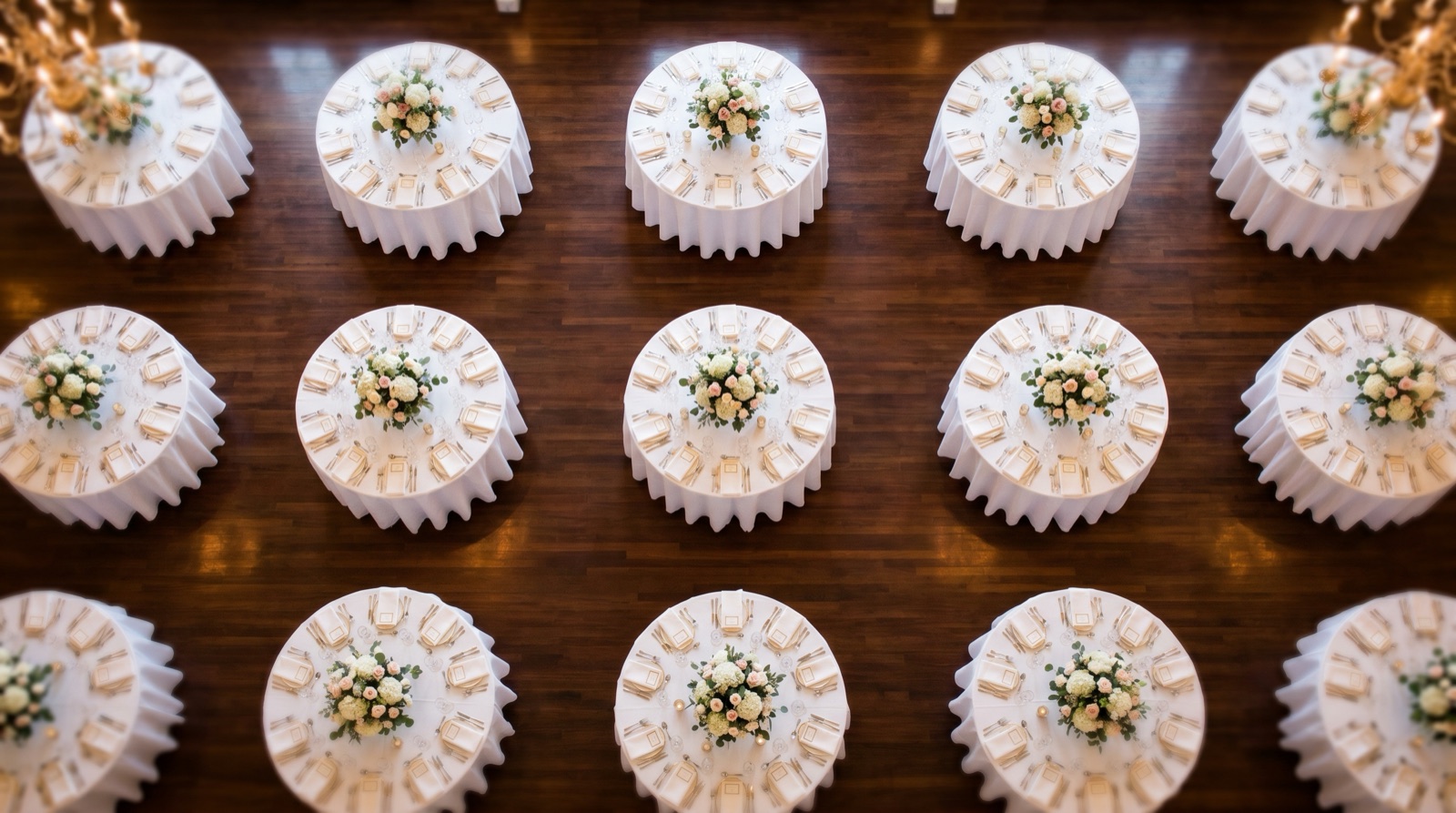
Wedding reception in minutes
Drag guests to seats, design floor plans, export to PNG.
Brunchie's new auto-assign feature does the puzzle for you. Set your preferences once. Tap auto-assign. Done.
How it works
1. Set your preferences
Before you auto-assign, tell Brunchie what matters:
- Must sit together — Couples, families, friend groups. Select two guests and mark them as "must sit together."
- Must not sit together — Exes, feuding relatives, people who shouldn't be at the same table. Same flow, different constraint.
- Dietary grouping — Tag guests by diet (vegan, gluten-free, kosher). Auto-assign groups them so the venue can plate by table instead of by seat.
- Accessibility — Flag guests who need an accessible table (wheelchair, near entrance). Auto-assign prioritizes placing them first.
You can add up to 500 preferences per seating chart—enough for the biggest weddings.
2. Tap auto-assign
Brunchie looks at every unassigned guest, groups people who must sit together, then scores each table:
- Does it have enough seats?
- Are there excluded guests already at the table?
- Do the dietary tags match the table's current occupants?
- Does the guest need accessibility?
The best-scoring table wins. Guests are placed. The whole thing takes seconds.
3. Review and adjust
Auto-assign handles the heavy lifting. If a guest couldn't be placed (not enough capacity, conflicting rules), you'll see exactly who and why. Drag them manually, add a table, or tweak a preference and re-run.
Who can use it
Hosts and cohosts can manage seating preferences and run auto-assign. Guests see their table assignment but can't change the chart.
When to use it
- Weddings — The classic use case. Family groups, dietary needs, keep-apart rules, accessibility—auto-assign handles all of it.
- Dinner parties — Even with 20 guests and 3 tables, preferences save you from the shuffle.
- Conferences and networking events — Assign attendees across tables without manually balancing.
Tips
- Set your preferences first, then auto-assign. You can always run it again after changing tables or preferences.
- Additional guests (plus-ones) are included in auto-assign alongside regular attendees.
- Duplicate preferences are blocked—if you already said "A must sit with B," you can't also add "B must sit with A."
{{demo_preview:seatings}}
Try Brunchie free
Brunchie replaces the spreadsheet, the group chat, and the half-finished invite list. Free forever for the people we built it for.
Get started