Attendee Limits Setup Guide
Cap attendance on your hangouts with first-come-first-served RSVP limits
Attendee Limits
Set a maximum headcount so signups are first come first served. Perfect for pickup games, workshops, dinner reservations, or any event with limited spots.

What you get
- A hard cap on how many people can RSVP as "Attending"
- First come first served enforcement — no manual counting
- Real-time spot openings when someone changes their RSVP
- Hosts and cohosts always guaranteed a spot
Step 1: Create a hangout
Start a new hangout or use Copy from past hangout to pre-fill from a previous event. The copy feature carries over title, location, description, capacity limit, and theme — just update the date and time.
Step 2: Set the attendee limit
In the RSVP section of the form, toggle on Attendee Limit and enter your max headcount. Optionally flip on Enable waitlist when full — once the cap is hit, would-be attendees can join a waitlist instead of being turned away, and Brunchie auto-promotes them as spots open.
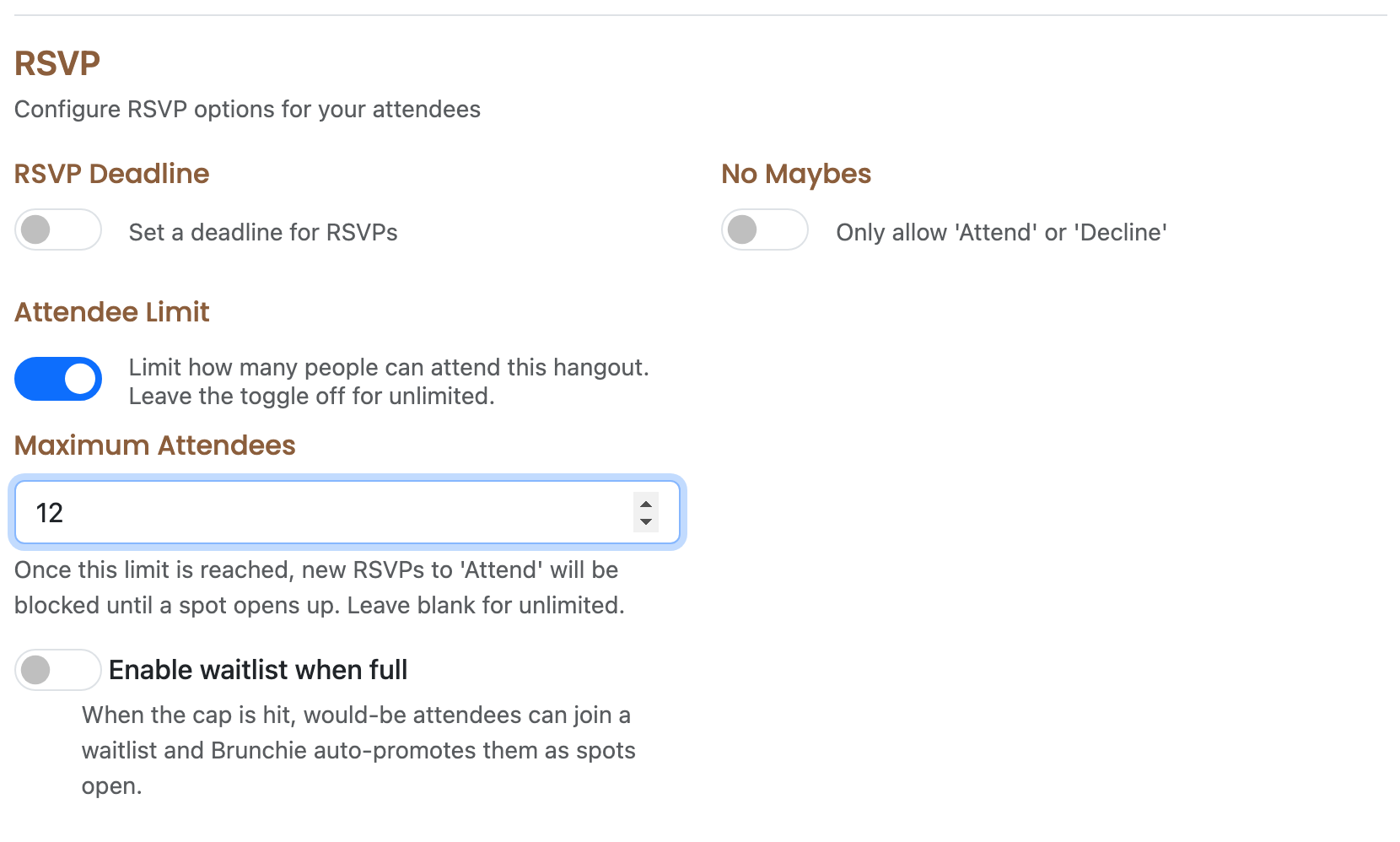
Good to know: Attendee limits and additional guests (+1s) can't be used at the same time. The form will automatically disable one when you enable the other.
Step 3: Invite your group
Invite as many people as you like. The cap only applies to "Attending" RSVPs — invites, "Maybe," and "Declined" are unlimited.
Step 4: Watch it fill up
The RSVP modal shows a live count: "8 / 12 attending". When all spots are taken, the "Attend" button is disabled with a message: "This hangout is at capacity. You'll be able to attend when a spot opens up."
If you enabled the waitlist, would-be attendees can join it instead — and when someone changes their RSVP to "Maybe" or "Declined," the spot opens immediately and the next person on the waitlist is promoted automatically. Without a waitlist, the freed spot is simply open for anyone still trying to attend.
Recurring events
For weekly or recurring events (pickup pickleball ladders, shinny hockey, badminton ladders, volleyball scrims, run clubs, game nights):
- Create your first hangout with the limit set
- Next week, click New Hangout and use Copy from past hangout
- Select last week's event — all settings carry over
- Update the date and create
No need to reconfigure the limit each time.
Tips
- Hosts and cohosts are exempt from the cap and don't count toward the limit. If you set a limit of 12, up to 12 guests can attend — hosts and cohosts get in on top of that number.
- The limit is server-enforced — even if two people click "Attend" at the exact same moment, only one gets the spot if there's only one left.
- You can change the limit after creating the hangout. Go to Edit and update the number. If you reduce it below the current attending count, existing attendees keep their spots but no new ones can join until the count drops.
- The API includes capacity data —
max_attendees,attending_count, andspots_remainingare returned in event responses for custom integrations.
Try Brunchie free
Brunchie replaces the spreadsheet, the group chat, and the half-finished invite list. Free forever for the people we built it for.
Get started