Run a Live Wedding Photo Slideshow on the TV — From the Booth, Through the Night
Stop ending the night with a USB stick. Show every photo as it's taken — booth shots, guest uploads, all of it — on the lobby TV, controlled from your phone.
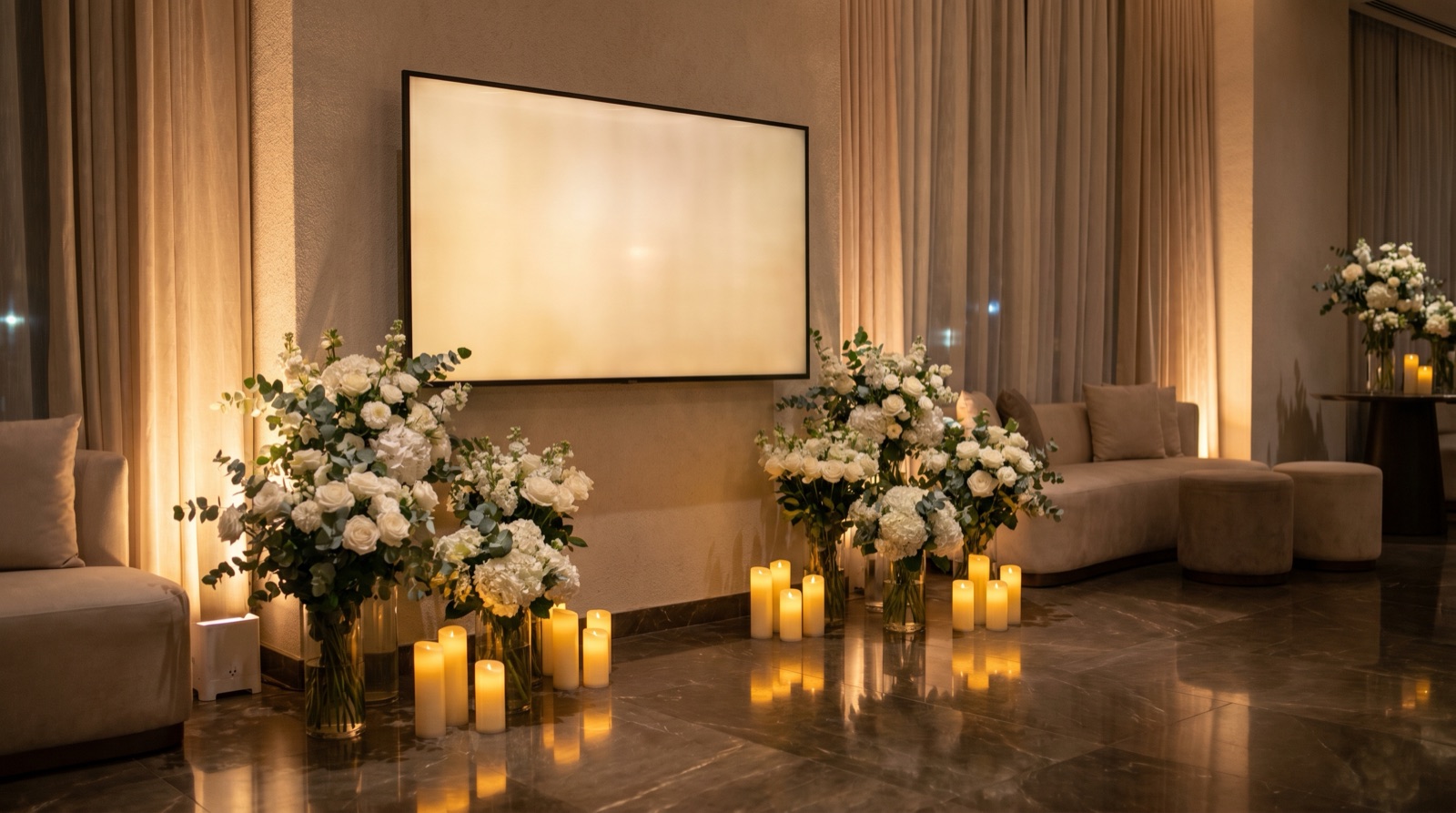
The "AirPlay the photo album" problem
Couples spend money on a photo booth. The photos come out beautiful. Then the photographer hands you a USB stick at the end of the night and you put them on Instagram three weeks later. Your guests never saw most of them.
You can do better with the TV the venue already has in the lobby.
What the actual feature does
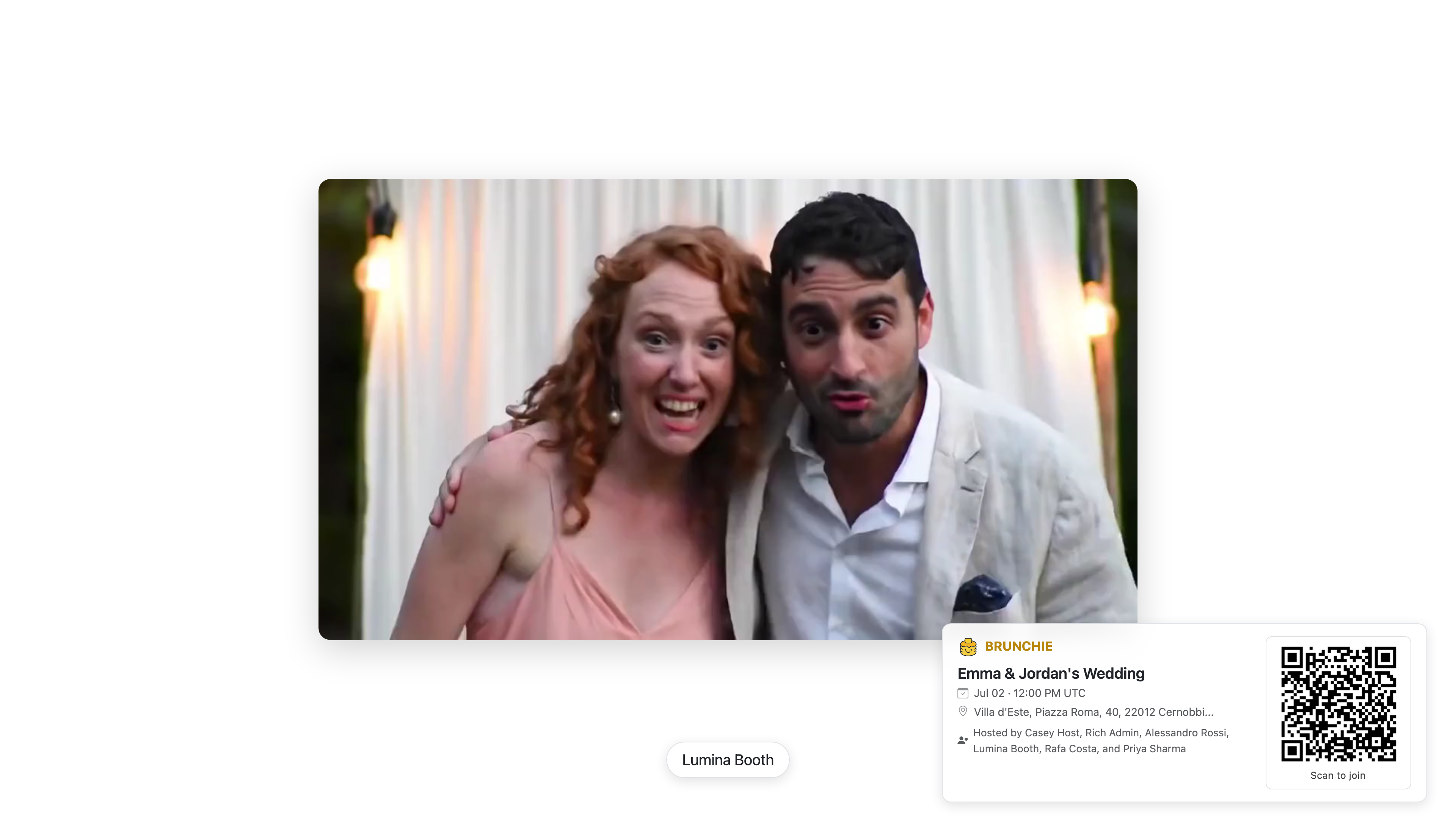
You open the Tools tab (rightmost tab, hosts and cohosts only), find the Photo booth stream card, and tap Open in new tab. That URL is your TV's kiosk page — load it in the TV browser and you're live. Three things happen on the TV:
- The latest upload heroes for a few seconds. Booth picture comes in, full screen, big.
- It folds into a rotation. Older photos cycle through behind it.
- Videos and GIFs play through. Capped at 15 seconds so nothing lingers.
The reason this matters in the moment: the lobby TV was going to show nothing, or a venue slideshow from 2019, or a screensaver. Now it shows your wedding, live, as it happens — the same feed your guests are posting to from their phones. It's the difference between a room that feels like it's capturing something and a room that's just happening. Guests notice.
What gets shown — and what doesn't
The slideshow pulls from anything posted to the hangout's Album feed:
- Photo booth uploads — any booth that integrates with Brunchie (Lumabooth, etc.) drops shots straight into the feed
- Guest phone uploads — the QR poster at the bar pointing to your hangout page, every photo a guest snaps and uploads, lands here too
- Cover photos and announcements — anything you post yourself
What it does NOT show: posts you've marked hosts-only. Those stay invisible on the public TV, which means you can keep posting vendor coordination notes ("DJ pls play Beyoncé at 9:30") without them flashing on the wall mid-cocktail-hour.
Why this beats the alternatives
| Brunchie Presenter Mode | Photo booth's built-in screen | AirPlay from a phone | "I'll send the album later" | |
|---|---|---|---|---|
| Includes guest phone uploads | ✓ | ✗ booth-only | ✗ manual | ✗ |
| Live as photos arrive | ✓ | ✓ booth shots only | ✗ requires manual refresh | ✗ |
| Hosts-only posts stay private | ✓ | n/a | ✗ all or nothing | n/a |
| Works on any browser | ✓ | venue-dependent | requires Apple ecosystem | n/a |
| Controlled from your phone mid-event | ✓ | ✗ | ✗ ties up the phone | n/a |
Setup, end to end
- Add your photographer as a cohost so they can also flip the TV between modes if needed (they often will — it's a courtesy thing).
- The day before: load the kiosk URL on the venue's TV browser and confirm fullscreen works on whatever browser it has. Smart TVs all have one; older TVs you can plug a laptop or streaming stick in.
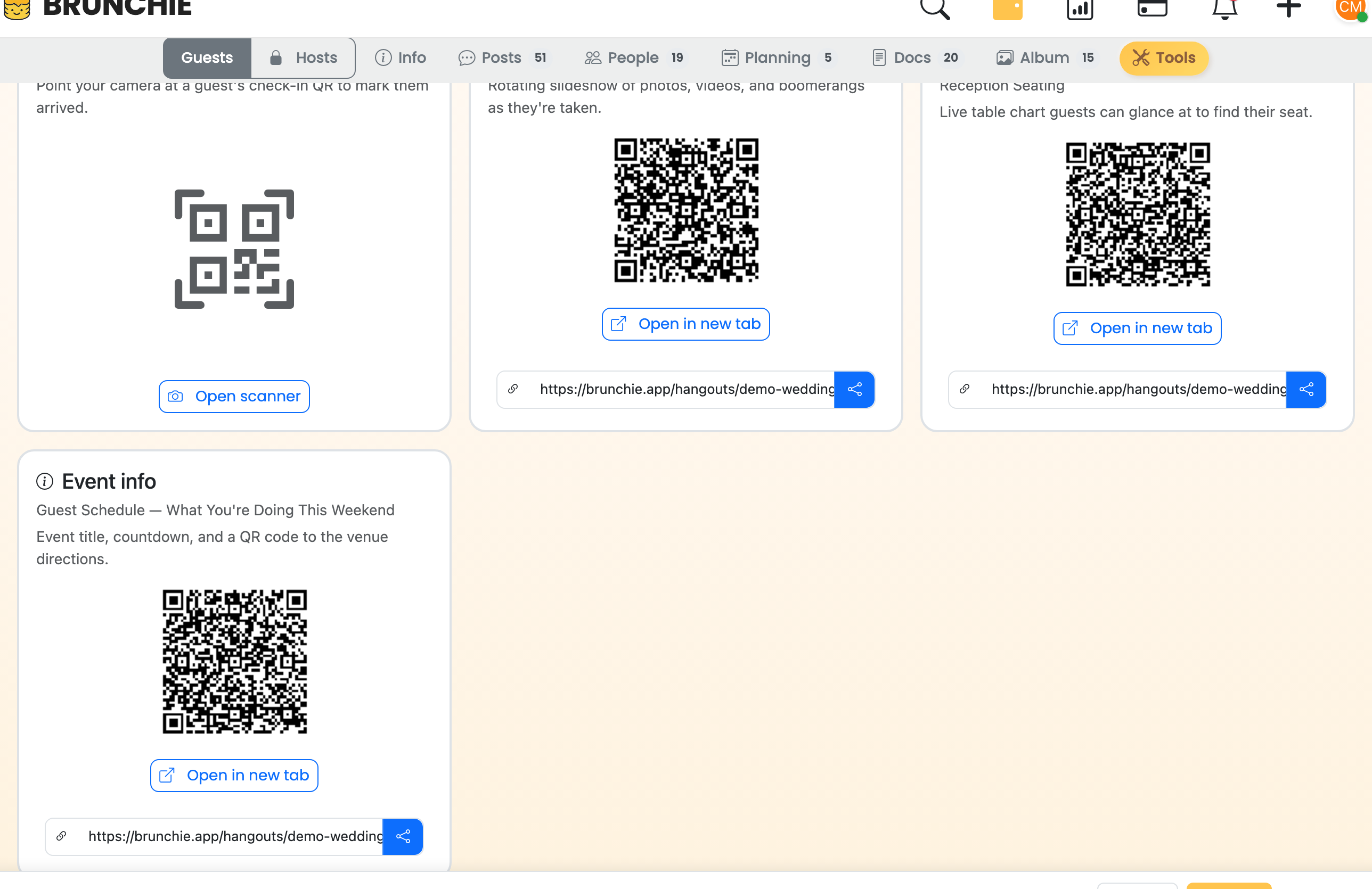
- Day of: open the Tools tab (rightmost tab, hosts only), find the Photo booth stream card, and tap Open in new tab to load it on the TV. Screen stays awake on its own; first tap goes fullscreen.
- Mid-event: tap Seating to flip to the seating chart when guests are arriving. Tap Photos again once the booth opens. Tap Info for the after-dinner countdown to dancing.
What guests notice
The candid that just got shot in the booth, blowing up on the lobby screen 30 seconds later, with their friends in it. They'll grab their phones to snap a photo of the photo. The slideshow is the kind of small thing nobody specifically asked for that everyone remembers.
A year later, when you watch the wedding video, you'll catch a frame of the TV in the background — your guests huddled around it, pointing at a photo of themselves, laughing. That's the moment. The TV was the room talking to itself, and you set it up in three taps.
Things to think about
- The TV's browser: Chrome, Safari, Firefox, Edge — anything with a modern HTML5 video player works. Smart TVs have these built in.
- Battery: plug the kiosk device in. Brunchie keeps the screen awake but doesn't keep the laptop charged.
- Orientation: landscape only for now. Portrait isn't supported yet.
- Privacy: hosts-only posts are filtered out. Anything in the public feed is fair game for the screen.
See also
- Presenter Mode Guide — full walkthrough, all three modes
- Seating Chart on the TV: a self-service "find your table" — the other presenter mode worth running
- Why Every Wedding Needs a Seating Chart
Try Brunchie free
Brunchie replaces the spreadsheet, the group chat, and the half-finished invite list. Free forever for the people we built it for.
Get started