Connect Your Photo Booth to Brunchie
Get your booth's photos, videos, and voice messages landing live in the couple's shared album — no tech skills needed. Plain-language setup for LumaBooth, dslrBooth, Breeze, Darkroom, Sparkbooth, and iPad booths.
Connect your photo booth to Brunchie
Setting this up for a developer? The technical reference — exact parameters, the OpenAPI spec, and both upload methods — lives at brunchie.app/developers/photobooth-uploads. The rest of this page is the plain-English version.
This guide is for the person setting up the photo booth — no technical know-how needed. It shows how to get your booth's photos, videos, and voice messages landing straight in the couple's live shared album. It works with LumaBooth, dslrBooth, Breeze Booth, Darkroom Booth, Sparkbooth, and iPad booths.
Stuck at any point? Email support@brunchie.app or use the contact page — and the host (the couple or planner) can help on the day. Tell us the name of your booth app and we'll point you to the exact setting.
What it does
Every time a guest steps out of the booth, their photo shows up in the event's shared Album within seconds — and on the TV slideshow, if the host is running one. No memory cards to hand over, no uploading a folder at the end of the night, no matching photos to names afterward. It just lands, live.
What you need from the host
Two things, both copied from one screen in their Brunchie event — Tools → "Connect a booth":
- An upload link — a long web address. Copy it exactly and paste it whole; don't change a single character.
- An event key — think of it like a password for the booth. It works for 7 days, then refreshes — so grab a fresh one the morning of the event. (If the host taps Rotate, the old key stops working right away.)
Here's the Connect a booth screen the host copies those from:

That's everything. Now you just put those two things into your booth software.
Set it up in your booth
Every booth app is a little different, but the idea is always the same: tell your booth to send each photo to the upload link, with the event key attached. Find the part of your booth's settings labelled something like Sharing, Upload, Webhook, or After capture — that's where these two things go.
If you use LumaBooth or dslrBooth (these "share" each photo by sending a link):
- Paste the upload link as the sharing/webhook address.
- Add the event key where it asks for a header, token, or password — the name is
X-Api-Tokenand the value is your key.
If you use Breeze Booth, Darkroom Booth, Sparkbooth, or an iPad booth (these send the actual photo file):
- Point the booth's upload / webhook / "after capture" action at the upload link.
- Add the event key the same way (
X-Api-Token= your key). - On an iPad, an Apple Shortcuts "watch a folder and upload" automation works nicely.
Not sure where those settings live in your app? Email us the name of your booth software at support@brunchie.app and we'll send you the exact taps. And always run a test first (next section).
The exact field names and the under-the-hood details — for whoever wires this up if it's not you — are in The technical setup at the bottom of this page.
Crediting a photo to the right guest
Each guest who RSVPs gets a personal QR code on their invite. If your booth can scan a QR at the start of a session, scan the guest's — and their photo posts with their name on it, plus they get an emailed copy. If your booth doesn't scan QR codes, no problem at all: photos still post, just without a name.
No scanner? Grab the guest's code by hand
You don't need a camera to "read" the QR — the code is really just a web address you can copy and paste. There are two easy ways to get it:
- From the guest's phone: on the event page they tap My QR (the QR-code button on the event header). The popup shows their code with a Share / copy link button right under it — one tap puts the link on the clipboard.
- From a printed invite: if the invite shows a QR web address, that whole
https://brunchie.app/qr/...link is what you want.
Paste that link into wherever your booth asks for the guest code for that session, and their shots are credited to them — no scanning required.
Credit every shot to your own brand — a free ad on every post
Here's a move most operators miss: you can credit every photo to your own Brunchie account instead of to individual guests. Then every booth shot at the event posts under your business name — in the album, in the feed, and on the TV. It's a gentle, in-context ad in front of every guest all night, with no extra work.
It works because each photo posts as whoever owns the guest code attached to it — and that owner can be you. One-time setup:
- Make a Brunchie account named for your business (e.g. "SnapBooth Co."). That name is what shows on every post.
- Get yourself added to the event as a guest — ask the host to invite you, or join with the event's share link. Now you have your own personal QR code on this event.
- Copy your own code the same way a guest does: open the event → My QR → Share / copy link.
- Use that link as the guest code for every upload — set it once and leave it, instead of scanning a different guest each time.
Now every shot lands as a post from your business name, and you get an emailed copy of each one too. Want the best of both? Scan the guest when you have their code, and fall back to your own when you don't — so nothing ever posts anonymously.
Here it is in the feed — every booth shot posted under the operator's business name:

Two heads-ups: grab a fresh copy of your own code for each event (it's tied to your spot on that specific guest list), and mention the plan to the host first — it's their guests' album. Most love the "every photo looks captioned" effect, but it's their call.
Always test before the event
Make a brand-new throwaway test event and run your tests there — never on the real one. Whatever the upload link points at is where the photos land.
- Create a free test event in Brunchie (about 30 seconds).
- Open Tools → Connect a booth and copy the upload link + event key into your booth (as above).
- On another screen, open the test event's Album — and the Presenter → Photo Booth view too, if you'll run a TV.
- Take a few test shots in the booth.
- Watch them appear in the Album (and on the TV) within seconds.
- If you scan guest QR codes, scan one and check the photo shows that name.
See your test shots land? You're ready. (If nothing shows up, jump to If photos aren't showing up.)
Where your photos show up
- Album tab — the pill tab on the event page. Every photo, video, and voice post lands here.
- Posts feed — the scrollable shared feed inside the hangout, where each shot lands as its own post — credited to the guest (if you attached their code), ready for reactions and comments.
- Presenter (Photo Booth view) — if the host runs the Presenter on a TV, new photos appear there live. (Voice-only posts go to the Album and feed but not the TV — the screen shows photos and videos only.)
What success looks like
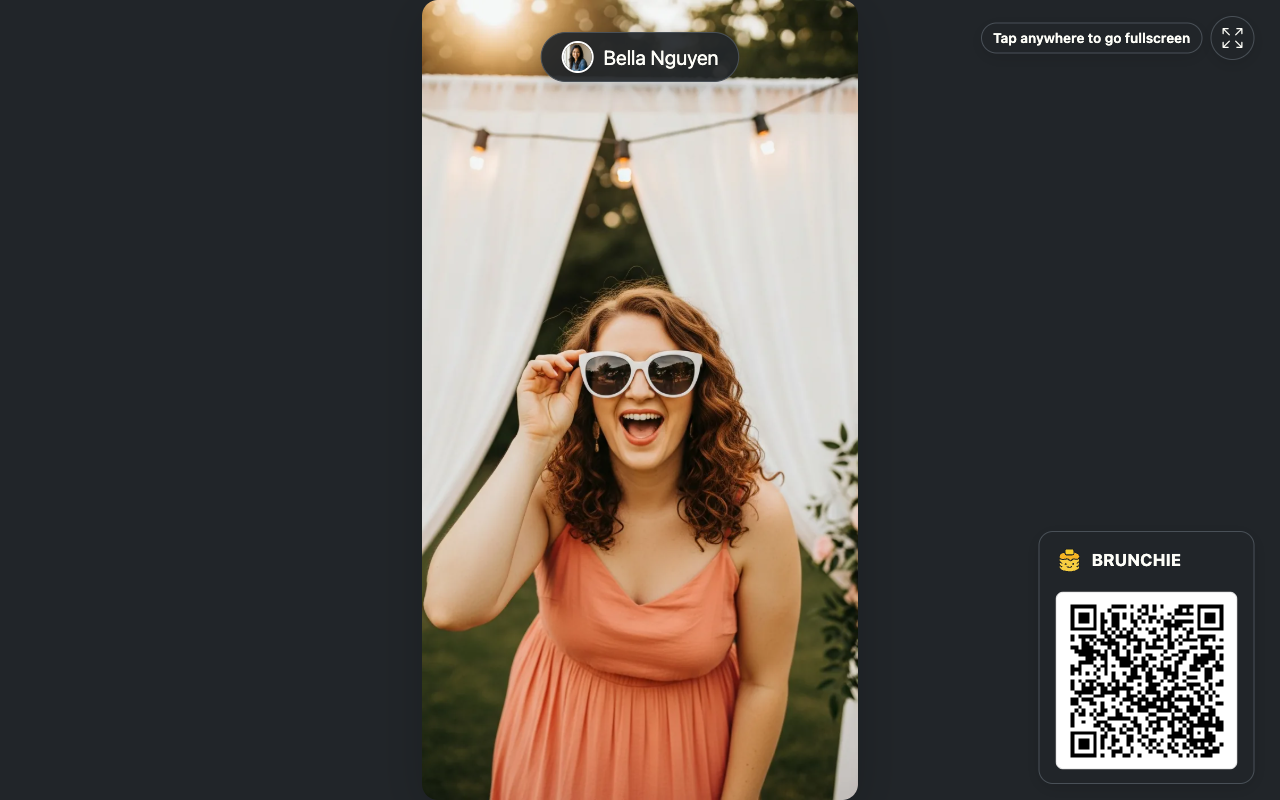
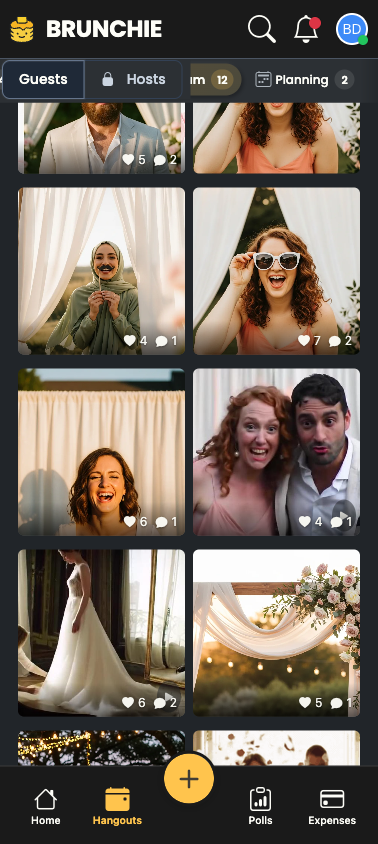
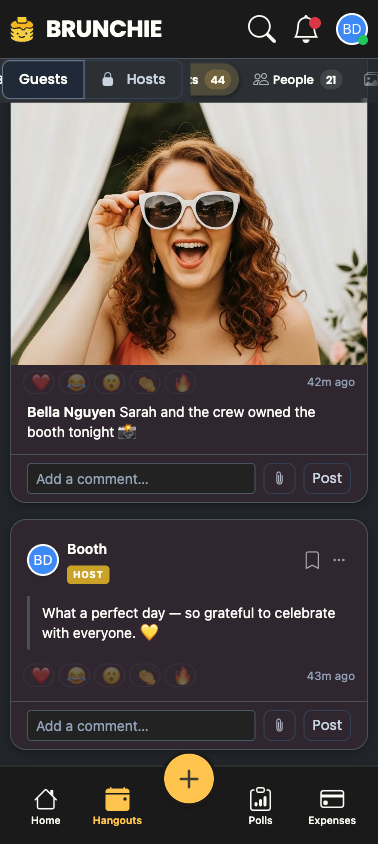
The same shot, seconds after it's taken, in all three places — here's one booth photo (credited to the guest whose QR was scanned) on the Presenter TV, in the Album grid, and as a post in the feed.
On the Presenter (TV slideshow) — the newest shot heroes full-screen with a small join QR in the corner:
In the Album tab — every booth photo collects in the shared grid:
As a post in the feed — credited to the guest, ready for reactions and comments:
If photos aren't showing up
Most hiccups are one of these:
- Nothing posting at all? The event key has probably expired. Keys refresh every 7 days — grab a fresh one from the host (Tools → Connect a booth), and watch for a stray space when you paste it.
- A post appears but the picture is blank (LumaBooth/dslrBooth)? The photo link your booth sent couldn't be opened. Make sure your booth uploads its photos somewhere public first — most do this automatically; check its sharing settings.
- Photos showing but with no guest name? The QR scan didn't come through. Check your booth is scanning the guest's invite QR (not some other code).
- Video or voice memo slow to appear? That's normal — give it up to a minute to finish processing.
Something wrong during the event itself? Email support@brunchie.app — photos post in real time, so we can watch the event live and help right away.
Quick FAQ
- Do I need to be techy? No. Paste two things into your booth and take a test photo. Stuck? Send us your booth app's name and we'll send the exact steps.
- Lots of photos per guest? Yes — every shot becomes its own post.
- Photo strips? Yes — a multi-frame strip can post as one swipeable set, or as a single combined image (see the technical section).
- Voice messages? Yes, if your booth records them.
- A limit on how fast I can send? No — fire away.
- A separate test environment? No — just spin up a free throwaway event and test on that.
Related
- The photobooth: your shared album — what guests see in the app
- Presenter Mode — the live TV slideshow your booth photos appear on
The technical setup
You only need this if you're wiring the booth up by hand (or your booth's "advanced/webhook" settings ask for specifics). Most operators can skip it. The fullest, most up-to-date reference is at brunchie.app/developers/photobooth-uploads.
Each capture is one POST (form-data) to the upload link the host gives you, with the event key in the X-Api-Token header:
POST https://brunchie.app/api/v1/webhooks/lumabooth?event_id=<event-slug>
Header
| Header | Value |
|---|---|
X-Api-Token |
Your event key (renews every 7 days) |
Fields (form-data) — these are the field names the host's lumabooth link expects. (The newer /booth endpoint also accepts the clearer names qr, media, media_type, and audio — see the developer guide.)
| Field | Required? | What it is | Example |
|---|---|---|---|
param1 |
Optional | The guest's personal QR web address from their invite. Include it and the photo is credited to that guest (their name on the post + an email copy). Leave it out (or send anything unrecognized) and the photo still posts fine — just as an anonymous booth photo. No error either way. | https://brunchie.app/qr/abc123def456 |
param2 |
Required unless sending audio only | The photo or video — either an uploaded file (direct upload) or its public web address (link upload; see media rules). For a multi-frame strip, this is the first frame. | https://yourbooth.com/photo123.jpg |
photos[] |
Optional | Extra frames — send several to land a swipeable carousel in one post. Repeat once per additional frame; param2 is the first. |
https://yourbooth.com/frame2.jpg |
param3 |
Yes | The media type label. Use strip for a multi-frame photostrip. |
image, video, boomerang, audio, or strip |
audio_url |
Optional | A voice message — a file or its public web address. Send alone for a voice-only post, or with param2 to attach it to a photo. |
https://yourbooth.com/voice123.mp3 |
You need at least one of param2 or audio_url (or both). Booth uploads always post to the shared album — there's no public/private setting to deal with on your end.
Responses
| Status | Meaning |
|---|---|
200 |
Accepted and posted (returns {"success": true, "post_id": …}). A repeat with the same client_id returns the original post, marked deduped. |
401 |
Event key missing, wrong, or expired — grab a fresh one from the host. |
422 |
The capture couldn't be saved (for example, over the size cap). |
500 |
Server error on our end — get in touch right away. |
A missing or unrecognized guest QR is never an error — it just posts as an anonymous booth photo and returns 200.
Media formats & sizes
| Type | Formats | Max size | Notes |
|---|---|---|---|
| Photo | JPG, PNG, WEBP, GIF, HEIC, RAW (CR2/CR3/NEF/ARW/DNG…) | 50 MB | HEIC and RAW are turned into a clear preview; the original is preserved. |
| Video | MP4, MOV, WebM, M4V | 500 MB | Keep clips under ~15s for best results. |
| Boomerang | MP4 (short loop) | 500 MB | Shows up labelled "GIF" in the app. |
| Voice memo | MP3, M4A, WAV | 25 MB | Plays as a waveform. ~60s is a guideline. |
Big direct uploads: very large files sent as a direct upload (above ~32 MB) can be limited by the server's request size. For big RAW originals, the link-upload method has no such limit.
If you send a link (the LumaBooth/dslrBooth method), that web address must:
- Start with
https://(nothttp://) - Be a direct, public link that returns the file immediately — no login walls, no private or internal addresses
- Not redirect — if it bounces through a redirect before the real file, our server gives up and the photo won't appear
⚠️ The one gotcha: if you send an anonymous photo (no guest QR) and the file link can't be downloaded (http instead of https, a redirect, a private/dead link), you'll still get a
200but no photo appears — nothing errors. Always use a direct publichttps://link, and glance at the Album or Presenter after your first few shots to confirm photos are landing.
Photostrips — several photos in one swipeable post
Send each frame in one call — param2 for the first, then a photos[] field for each additional frame — and they post as one swipeable carousel (like Instagram), not a stitched composite:
curl -X POST "https://brunchie.app/api/v1/webhooks/lumabooth?event_id=<event-slug>" \
  -H "X-Api-Token: <event-key>" \
  -d "param1=https://brunchie.app/qr/<guest-qr>" \
  -d "param2=https://yourbooth.com/photo1.jpg" \
  -d "photos[]=https://yourbooth.com/photo2.jpg" \
  -d "param3=strip"
That lands as a single post guests swipe through (the dots under the photo show there's more than one). Here it is in the album feed — the multi-photo strip up top, a single-photo booth shot right below:

(Add more photos[] fields for a 3- or 4-frame strip.) Prefer a single composited strip image? That works too — send it as one param2 photo.
Copy-paste examples
# Direct file upload (recommended) — the booth sends the photo file itself
curl -X POST "https://brunchie.app/api/v1/webhooks/booth?event_id=<event-slug>" \
  -H "X-Api-Token: <event-key>" \
  -F "media=@/path/to/photo.jpg" \
  -F "media_type=image"

# Link upload (LumaBooth/dslrBooth) — the booth sends a public photo URL
curl -X POST "https://brunchie.app/api/v1/webhooks/lumabooth?event_id=<event-slug>" \
  -H "X-Api-Token: <event-key>" \
  -d "param2=https://yourbooth.com/photo123.jpg" \
  -d "param3=image"

# Credit it to a guest — add their invite QR as param1
curl -X POST "https://brunchie.app/api/v1/webhooks/lumabooth?event_id=<event-slug>" \
  -H "X-Api-Token: <event-key>" \
  -d "param1=https://brunchie.app/qr/<guest-qr>" \
  -d "param2=https://yourbooth.com/photo123.jpg" \
  -d "param3=image"

# Voice message only
curl -X POST "https://brunchie.app/api/v1/webhooks/lumabooth?event_id=<event-slug>" \
  -H "X-Api-Token: <event-key>" \
  -d "audio_url=https://yourbooth.com/voice123.mp3" \
  -d "param3=audio"
Troubleshooting (technical)
| What you're seeing | What to check |
|---|---|
Getting 401 |
Event key missing, wrong, or expired. Grab a fresh one (Tools → Connect a booth). Watch for stray spaces — it's case-sensitive. |
Photo not appearing, but you got 200 |
A link-upload file couldn't be reached by our server. Confirm it's https://, a direct public link (no redirects, no login walls, not local/private). See the gotcha above. |
Getting 422 |
The capture couldn't be saved — usually over the size cap. Check the file against the limits above. |
| Video slow to appear | Videos process in the background — give it up to a minute. |
| Guest's photo shows but not under their name | The QR in param1 may be from a different event or garbled. Confirm the full URL is passed correctly. |
Try Brunchie free
Brunchie replaces the spreadsheet, the group chat, and the half-finished invite list. Free forever for the people we built it for.
Get started