Seating Charts Guide
Create seating charts with tables, drag-and-drop, smart auto-assign, and constraint preferences for weddings, dinners, and events
Feature overview
Seating charts
Wedding reception in minutes
Drag guests to seats, design floor plans, export to PNG.

How it works
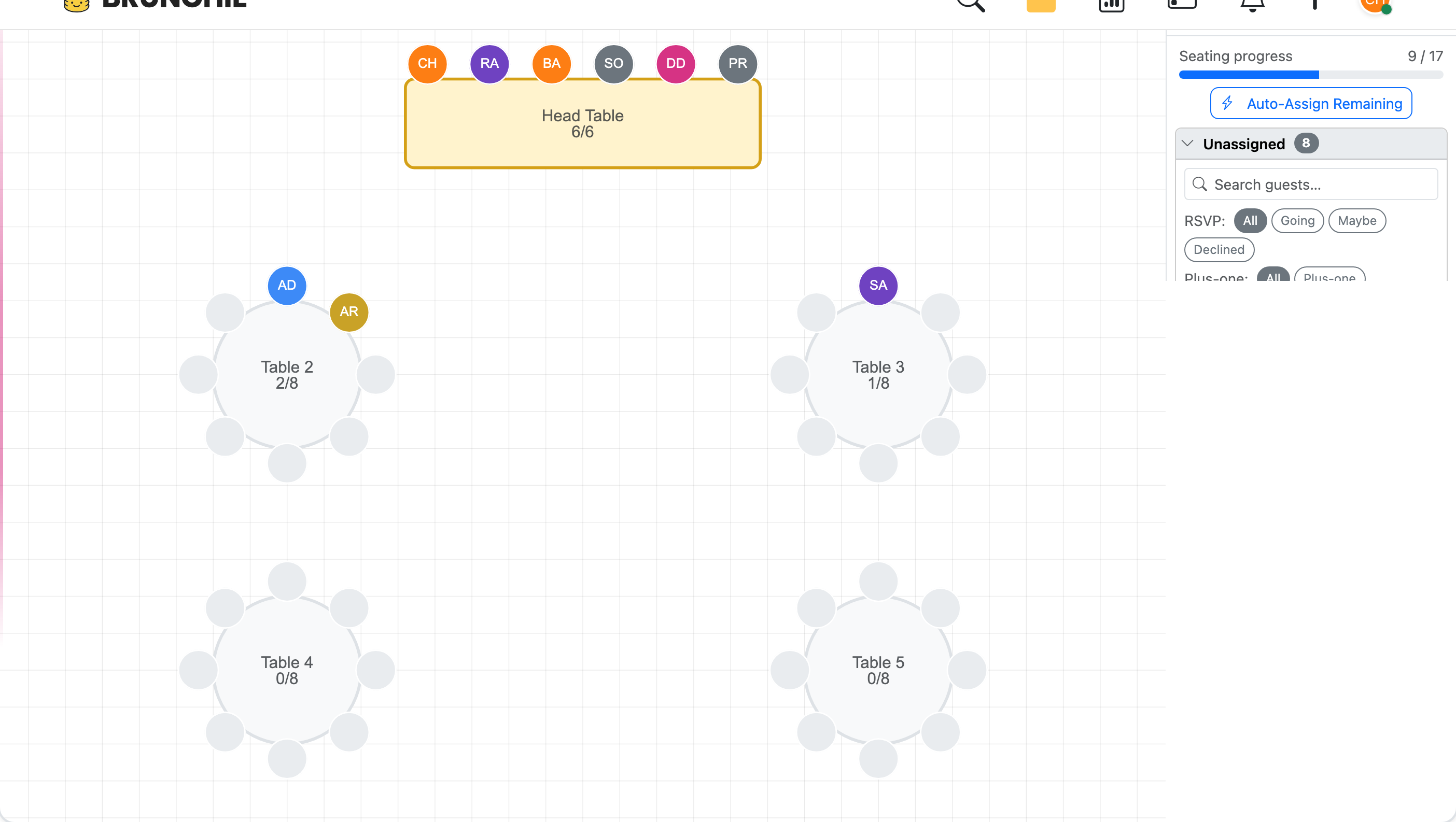
- Create a seating chart in your hangout—add tables and set the capacity for each one.
- Add your guests—drag and drop attendees onto tables, or let auto-assign do the work for you.
- Set preferences (optional)—add constraints like “must sit together,” “keep apart,” dietary groupings, or accessibility needs.
- Auto-assign—tap auto-assign and Brunchie places guests at the best table based on your preferences and available seats. Guests who can't be placed are flagged so you can adjust manually.
- Share—guests see their table assignment in the hangout. No separate link or spreadsheet needed.
Seating preferences
You can add four types of preferences before running auto-assign:
- Must sit together — Two guests who should be at the same table (e.g. couples, families).
- Must not sit together — Two guests who should be kept apart.
- Dietary grouping — Group guests by dietary needs (e.g. vegan, gluten-free) so the venue can serve tables efficiently.
- Accessibility proximity — Flag a guest who needs an accessible seat (e.g. near entrance, wheelchair-friendly table).
You can add up to 500 preferences per seating chart. Duplicates (including reverse pairs like “A with B” and “B with A”) are automatically prevented.
Import from anywhere
Already have a seating chart? Don't rebuild it from scratch—import it. There are two entry points depending on where you are in the process:
Starting fresh with an imported layout
When creating a new seating chart, the New Seating Chart form has an optional file upload right inside it. Fill in the title and layout type, attach your file (CSV, XLSX, PDF, or a photo), and click Create. Brunchie creates the chart and runs the import in one step.
Replacing an existing chart
If you already have a seating chart and want to start over from a new file, use the Import section on the Edit Seating Chart page. Uploading here fully replaces all existing tables and guest assignments—a warning prompt appears before you confirm, so you won't lose work by accident. If you want a backup first, duplicate the chart (or export it as PDF) before importing.
What you can upload
- PDF or photo — Upload a floor plan, venue diagram, or photo of a hand-drawn layout. Brunchie's AI reads the document and extracts tables, positions, dance floors, and other venue items automatically.
- Spreadsheet (CSV, XLSX) — Upload a guest list with table names and emails. Columns are auto-detected—just make sure headers like “Table,” “Name,” and “Email” are present.
Wait for processing (PDFs take 30–60 seconds; spreadsheets are instant). Your imported tables and guests appear on the canvas, ready to adjust.
Supported formats: CSV, XLSX, XLS, XLSM, ODS, PDF, PNG, JPG, JPEG.
Tips for best results:
- Use a high-resolution PDF for the clearest AI parsing.
- Spreadsheets with a “Table” and “Email” column work best.
- Re-importing on an existing chart is destructive—all current tables and assignments are removed before the new ones land. Duplicate the chart first if you want a fallback.
Renaming and removing tables
Right-click any table on desktop (or long-press on mobile) to open a context menu with Rename and Remove options. If the table has guests seated at it, removing it shows a confirmation—“Remove Table 1? 3 seated guests will be unassigned”—so you know exactly who gets bumped before you confirm. Unassigned guests stay on your guest list and can be dragged to another table.
Who can see and edit the chart
Like every Brunchie spreadsheet and checklist, the seating chart carries a visibility setting — with one sensible guardrail: a seating chart always stays at least guest-viewable, because the whole point is that guests find their own table. So guests can always see the chart (no account needed via the share link), but only hosts and cohosts can edit it — the drag-and-drop, the preferences, the auto-assign stay with the host team. The full per-item permission model (hosts-only / view / edit, and the badge that shows each setting) is in the spreadsheets guide.
Use cases
- Weddings: tables with constraints (family groups, dietary needs, keep exes apart)
- Dinners: quick drag-and-drop for smaller groups
- Conferences: auto-assign attendees across networking tables
Tips
- Run auto-assign first, then manually adjust any placements you want to change.
- If auto-assign leaves guests unassigned, check whether you have enough table capacity or conflicting constraints.
- Additional guests (plus-ones) participate in seating preferences alongside regular attendees.
- Only hosts and cohosts can manage seating and preferences.
Day-of: print and display the chart
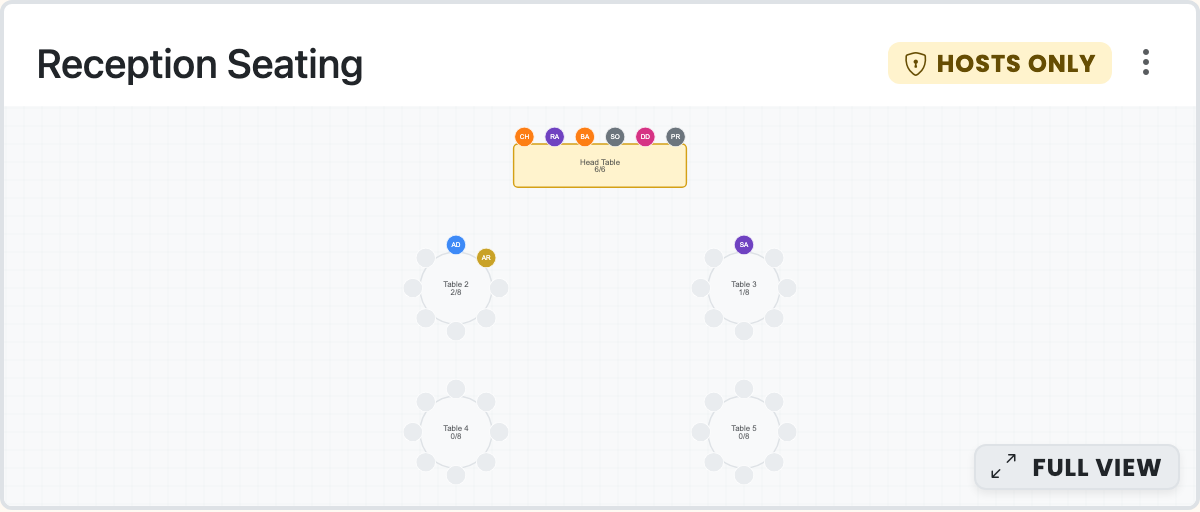
- Print to PDF for the easel — click Export for a 2-page, ready-for-the-easel PDF (landscape easel poster + portrait letter page). See the PDF Export Guide for paper size, large-event handling, and the legacy XLSX/PNG options.
- Display on a TV at the venue — pop the chart up on the lobby screen with Presenter Mode so guests find their own table. The live screen + the printed easel work in tandem.
Related guides
- PDF Export Guide — print-ready 2-page PDF for the venue easel
- Presenter Mode Guide — display the chart on a TV at the venue
- Importing Data — import seating charts from PDFs, photos, or spreadsheets
- Wedding Planning — seating as part of your full wedding workflow
- Expense Splitting — track event costs alongside your seating plan
{{demo_preview:seatings}}
Common questions
How big can a Brunchie seating chart be?
Can guests see their seating assignment without an account?
What happens if the AI auto-assign places a guest somewhere wrong?
Can I import an existing seating chart?
How does Brunchie's seating chart compare to other wedding tools?
Try Brunchie free
Brunchie replaces the spreadsheet, the group chat, and the half-finished invite list. Free forever for the people we built it for.
Get started