The Event Info Screen: a Countdown, a Map QR, and the End of "What Time Is It Again?"
The lobby TV during early arrivals doesn't need to be off. Throw up the event title, a live countdown, and a Google Maps QR for the venue — guests find their way without asking, you greet people instead of giving directions.
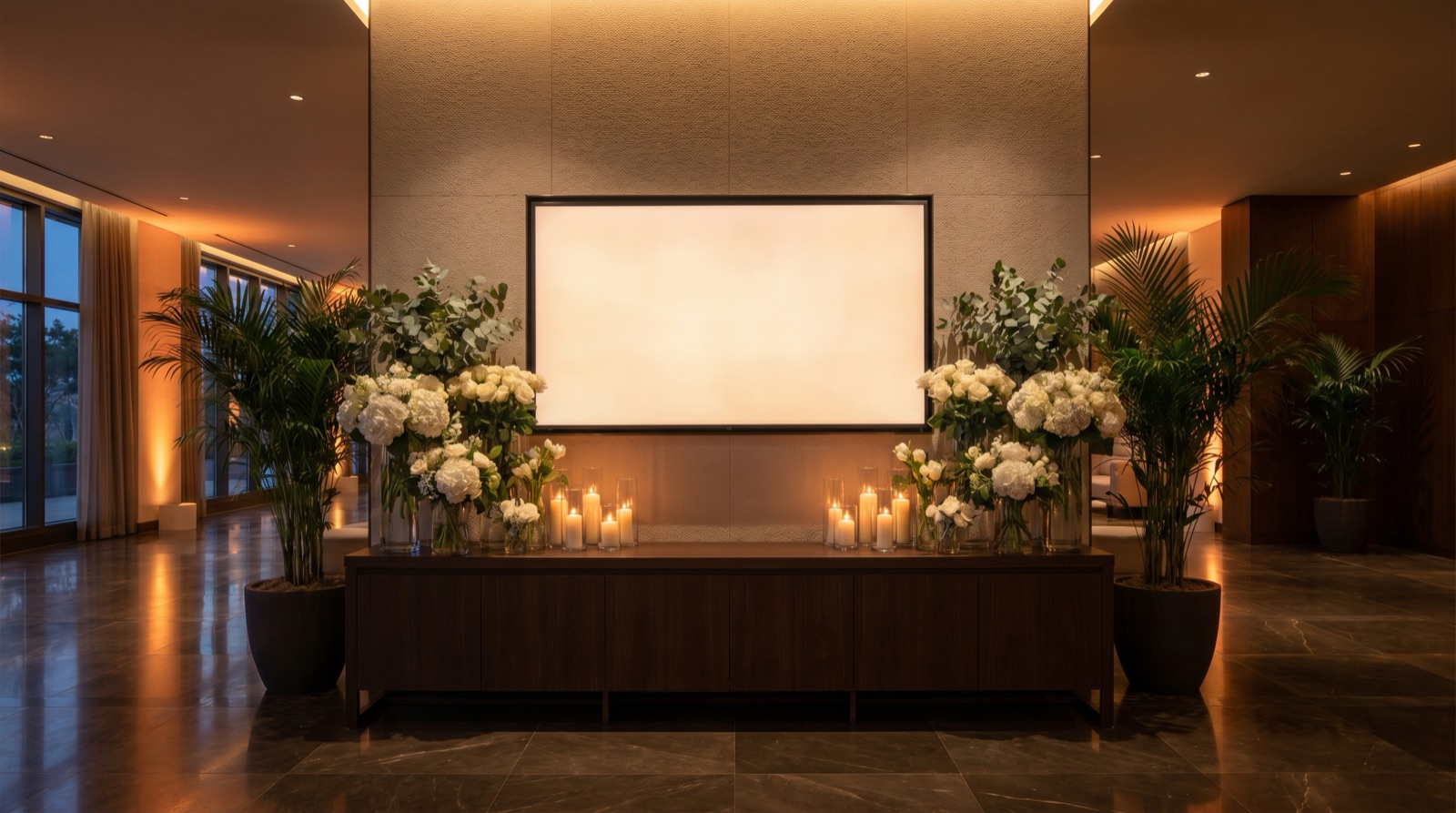
The "what time does this start again" problem
Two hours before doors. Your phone is buzzing. Three guests are already there asking where the venue is. Two more are texting "what time were we doing this?" Aunt Carol is calling because the GPS sent her to a different Villa d'Este in another province.
You can't be the answer to all of that and also be getting ready.
Brunchie's Presenter Mode → Info has a fix.
What this is
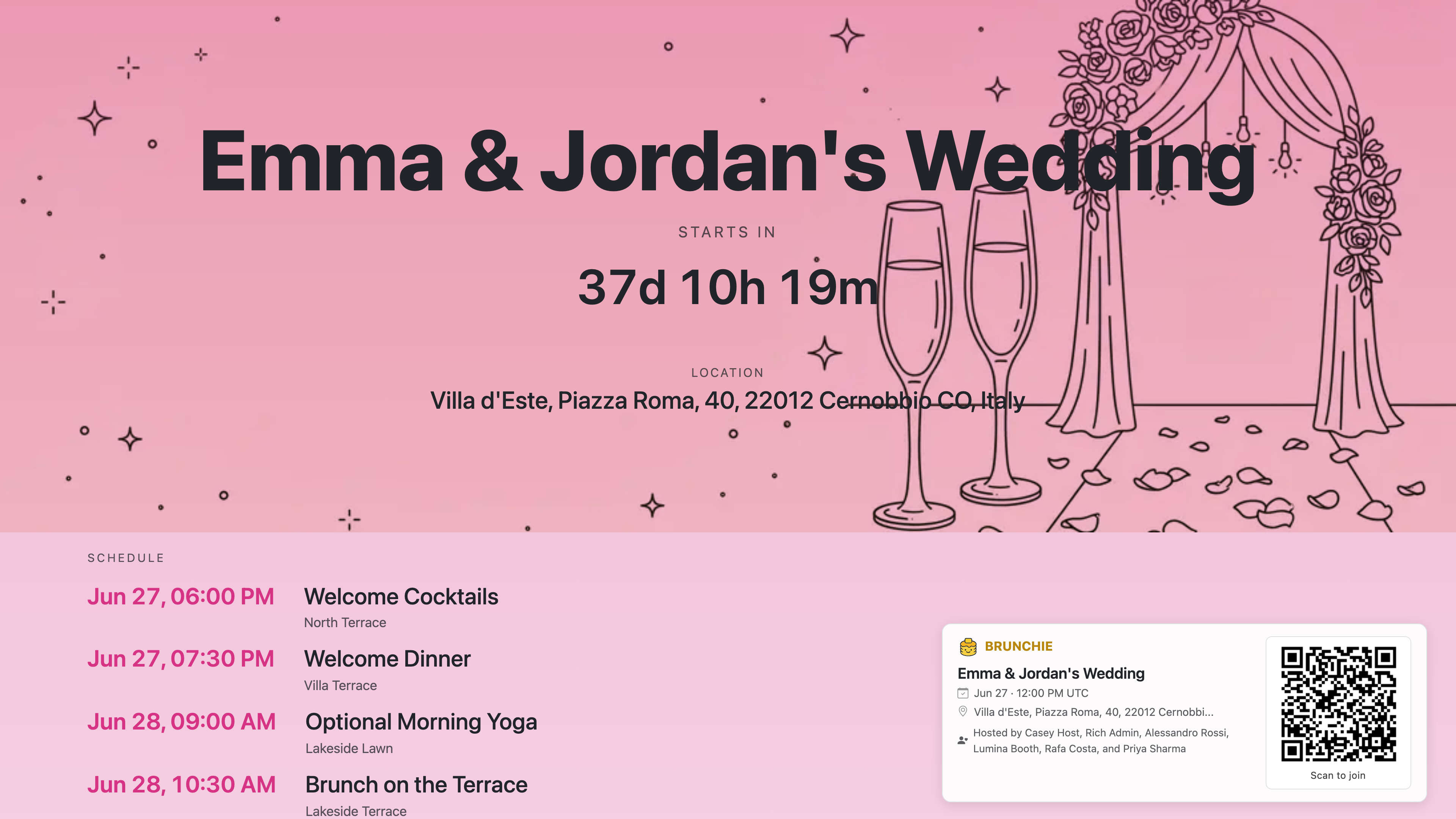
Same Presenter Mode that runs the photo slideshow and the seating chart — different screen. Tap Present on TV on your hangout, pick Info. The TV shows three things, big and clean:
- Your event title — wedding-themed pink for weddings, brand-themed for everything else, blurred cover-photo background
- A live countdown —
STARTS IN 42d 04h 01m, ticking down in real time. Once doors open, it flips to "Happening now" - A scannable QR for venue directions — guests scan, Google Maps opens with directions to the address you put on the hangout
Why a countdown matters more than you'd think
People show up early to weddings, parties, dinners — partly because they're excited, partly because nobody trusts traffic. The first 90 minutes before doors are when you're least available and your guests are most lost.
A live countdown is the simplest possible answer to "is this even happening yet." Stick it on a screen anyone arriving sees, in the lobby or by the bar. Eyes go to it, the brain instantly knows where it is in time, the guest stops asking around.
The QR is the same logic for spatial questions. Your venue address on a wedding invite is text on a card the bride threw in a drawer two months ago. The QR turns the venue address into one tap to a working Google Maps route — even from the parking lot when someone forgets which entrance they should use.
Setup
You already know it if you've used Photos or Seating mode:
- On your phone: open the hangout, tap Present on TV.
- On the TV: scan the QR shown on your remote page, or type the kiosk URL into the TV's browser.
- Pick Info on your phone. The TV shows the countdown screen instantly.
- Doors open → it flips to "Happening now" automatically. No host action needed.
Mid-event, tap Photos or Seating on your phone to swap the screen to the other modes. Info is the right pre-event display; once the band starts, you're better off on Photos.
Pair it with what guests are already doing
- The QR is the same Brunchie hangout link — anyone who scans it can also RSVP, see the seating chart, and start uploading their phone photos to the shared album. One QR, three jobs.
- Pair with the printed PDF — print the seating chart easel poster for the entrance, run the Info screen on the lobby TV. Two surfaces, two questions answered, zero greeting interrupted.
- Pair with check-in — if you're using QR check-in for entry, the Info mode runs on the lobby TV behind the check-in line so people staring at the line can see where they are in time.
Things to think about
- Countdown clock is in the venue's timezone — Brunchie reads the timezone from the hangout's event settings. Set it correctly when you create the event; the countdown does the rest.
- The QR is venue-only — it points to Google Maps with the location you put in the event's Location field. Make sure that field is the actual full address (Villa d'Este, Piazza Roma, 40, 22012 Cernobbio CO, Italy — not just "Villa d'Este").
- The cover photo gets blurred behind the title — pick one that has color/mood you want as the screen's vibe. A gold-hour ceremony shot, a venue facade, a flower arrangement.
- Landscape only — like the other Presenter Mode screens. Portrait isn't supported.
What it isn't for
- Replacing the printed program/itinerary — the Itinerary on Brunchie is the deeper "what's happening when" surface. The Info mode is the broad-stroke "is it happening now" surface.
- A welcome video loop — the Info screen is a static template (title + countdown + QR), not a slot for custom video content. If you want video, run the Photos slideshow and post videos to the hangout.
- A self-service check-in screen — Info doesn't gate entry. It's read-only ambient info. Use a separate check-in surface for ticketing.
Related
- Presenter Mode Guide — full walkthrough, all three modes
- Photo Slideshow on the TV — Photos mode (the booth feed)
- Seating Chart on the TV — Seating mode (find-your-table)
- Print Your Seating Chart for the Easel — the matching print export
Try Brunchie free
Brunchie replaces the spreadsheet, the group chat, and the half-finished invite list. Free forever for the people we built it for.
Get started